













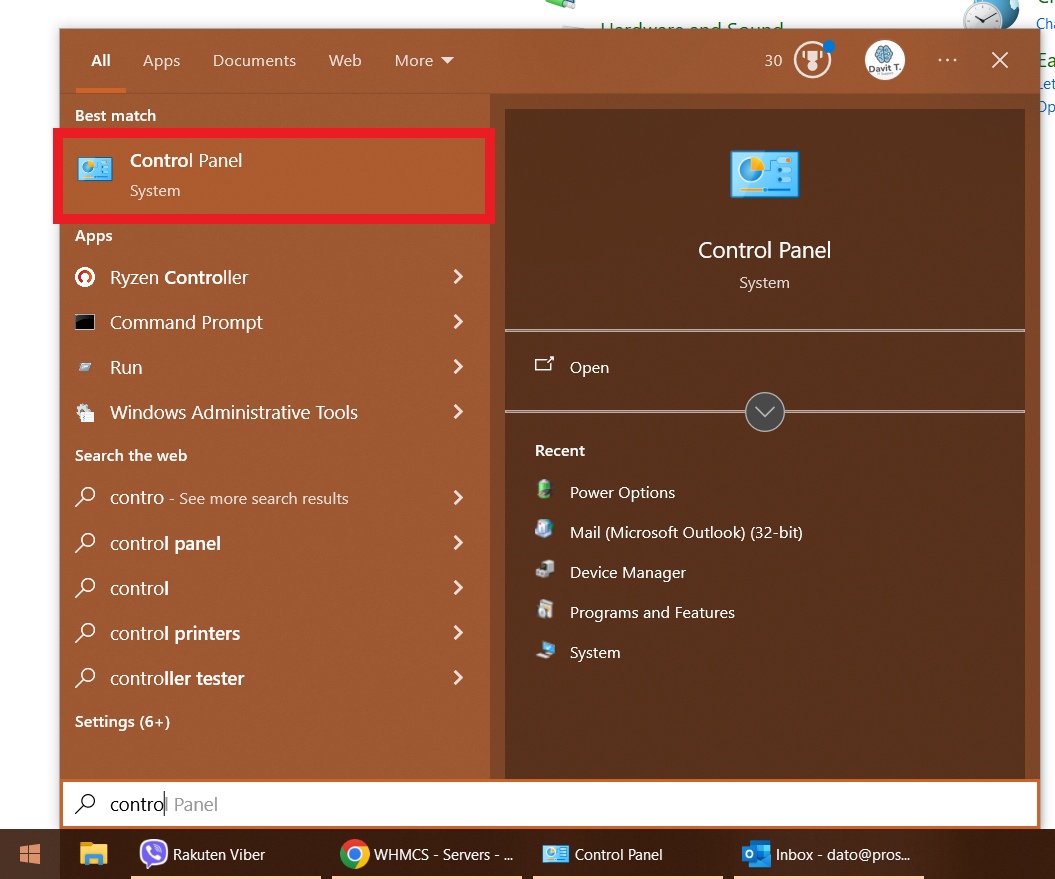
ვინდოუსის საძიებო ველში ჩაწერეთ control panel
Search Control Panel in Windows
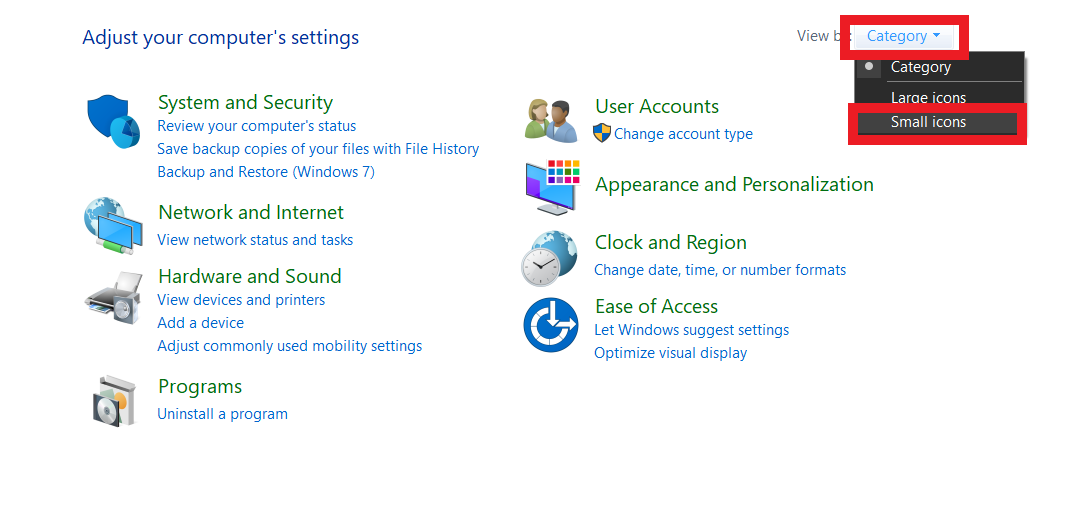
კატეგორიის მენიუ ჩამოშალეთ და დააკლიკეთ Small Icon-ს
Roll down categories and click on a small icon
მიყევით ქვემოთ მითითებულ ნაბიჯებს
Follow the steps below
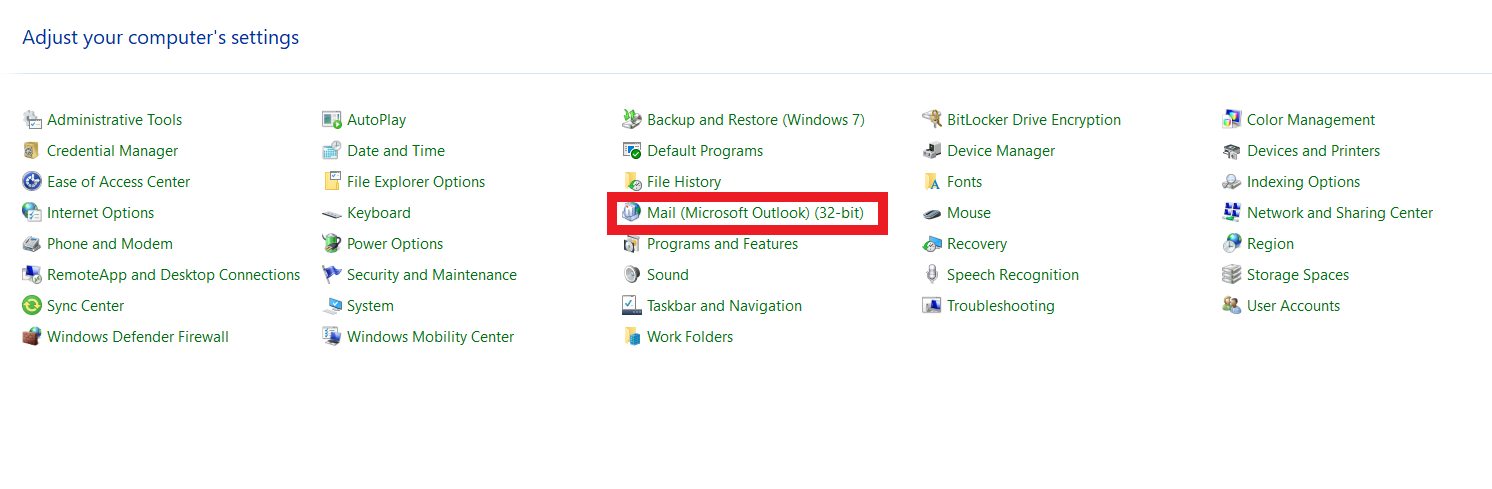
Mail(Microsoft Outlook)
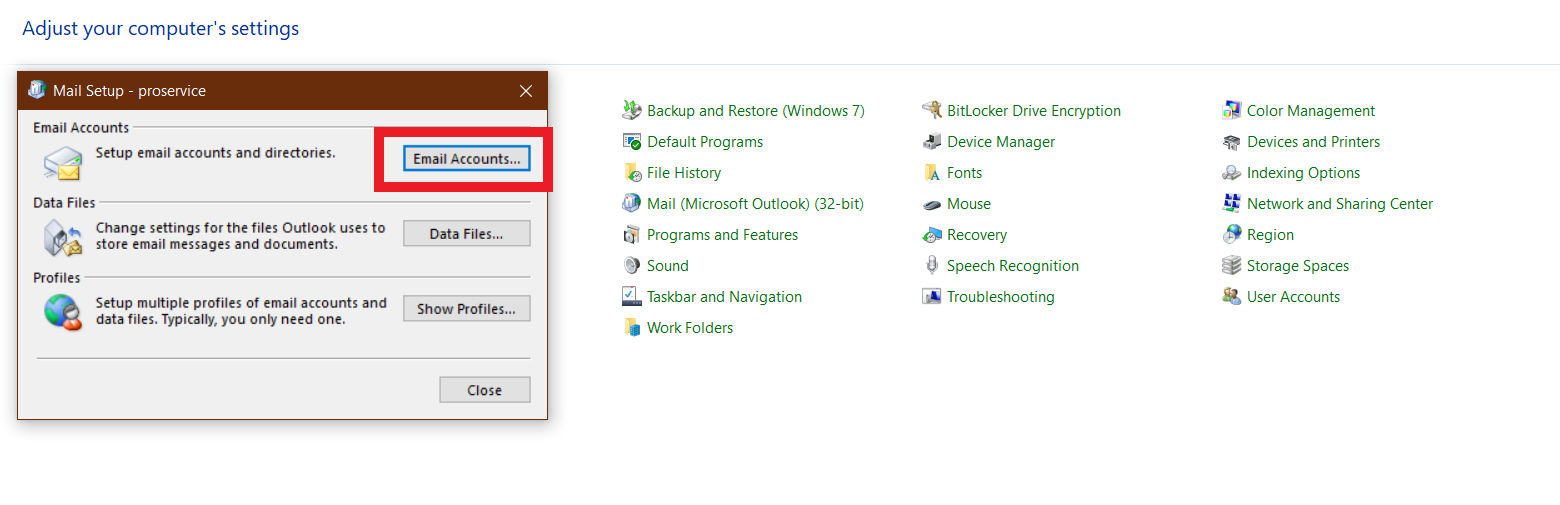
Email Accounts
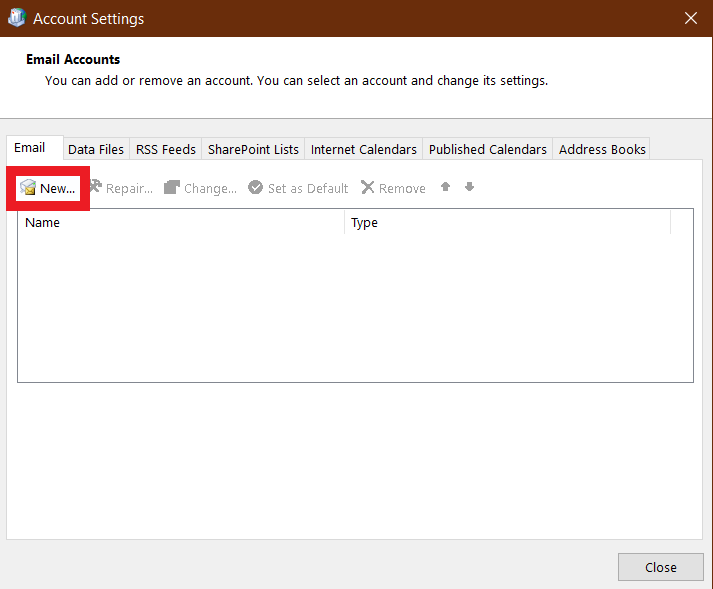
New
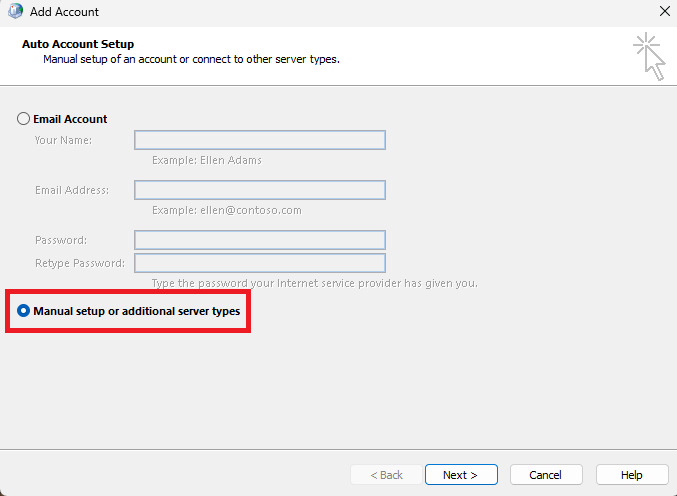
Manual Setup
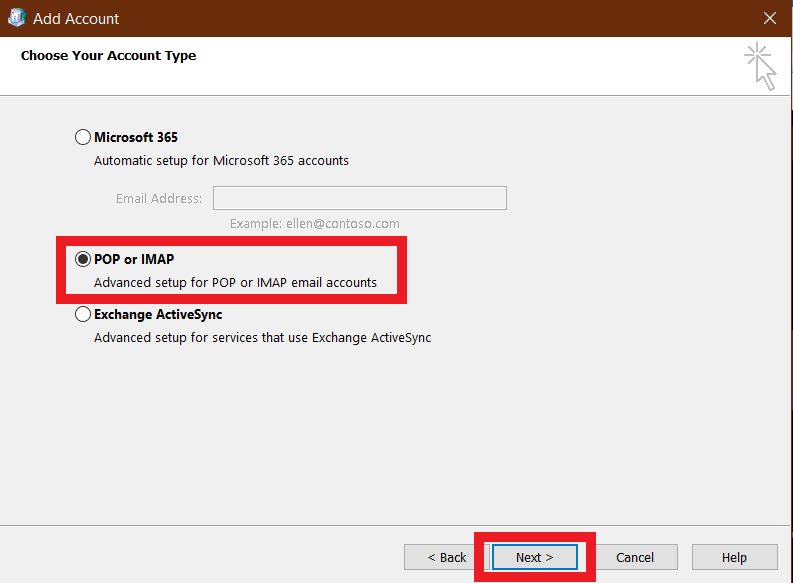
POP or IMAP
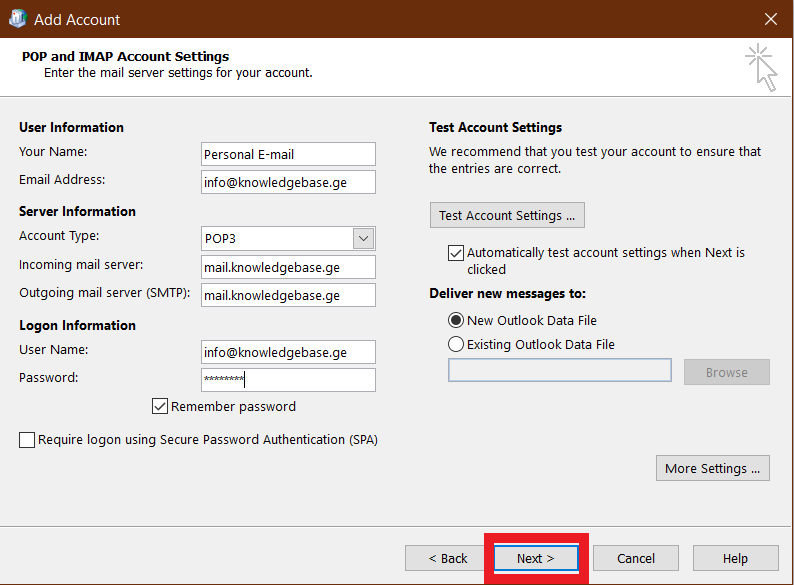
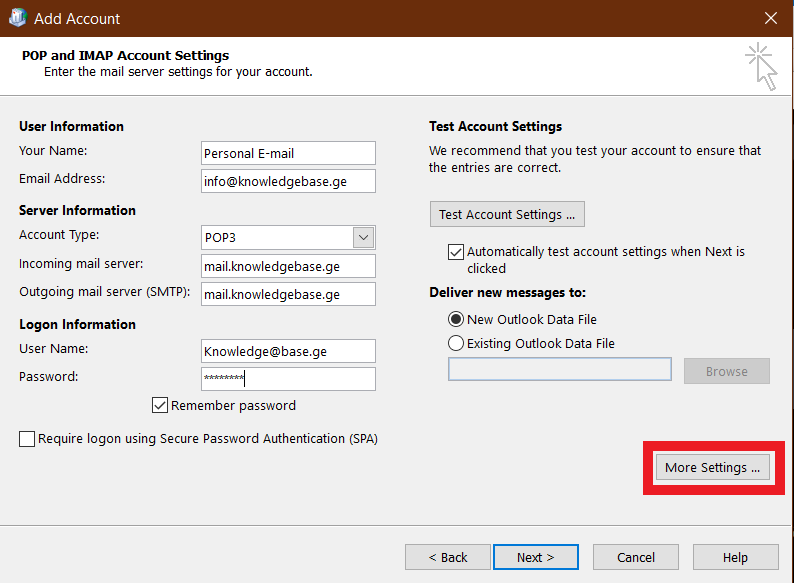
User Information
Your Name: შეიყვანეთ ელ-ფოსტის სახელი
Email Address: შეიყვანეთ ელ-ფოსტა
Server Information
POP3/IMAP კონფიგურაცია იგივეა
incoming mail server: mail.თქვენიდომენი.ge
Outgoing mail server (SMTP): mail.თქვენიდომენი.ge
Login information
User Name: შეიყვანეთ ელ-ფოსტა
Password: შეიყვანეთ ელ-ფოსტის პაროლი და დააკლიკეთ More Settings
User Information
Your Name: insert E-mail username
Email Address: insert E-mail
Server Information
POP3/IMAP: for both is the same
incoming mail server: mail.yourdomain.com
Outgoing mail server (SMTP): mail.yourdomain.com
Login information
User Name: insert E-mail
Password: insert E-mail password and click More Settings
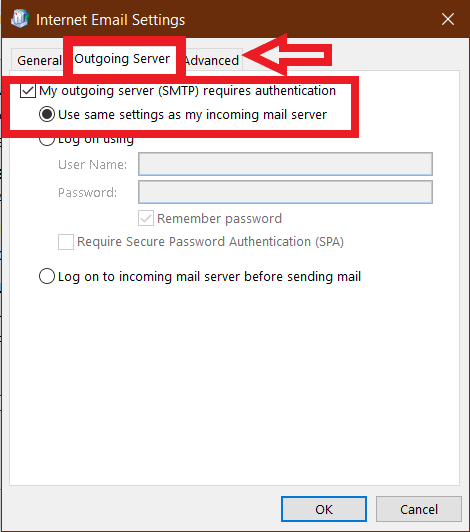
მონიშნეთ my outgoing server(SMTP) requires authentication და Use same settings as my incoming mail server, გადადით Advanced-ში
Checkmark my outgoing server(SMTP) requires authentication and Use same settings as my incoming mail server and move to Advanced
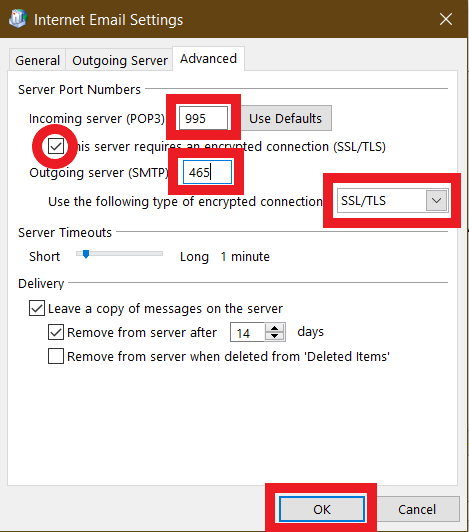
SSL-ით დამატების შემთხვევაში მონიშნეთ "This server requires an encrypted connection (SSL/TLS)" POP3-ის შემთხვევაში გამოიყენეთ პორტი 995, IMAP-ის შემთხვევაში 993
SSL-ით დამატების დროს Outgoing Port-ი ორივე პროტოკოლისთვის ერთია 465 , Use the following type of encrypted connection მიუთითეთ SSL/TLS დააკლიკეთ Ok-ის
To use SSL enable "This server requires an encrypted connection (SSL/TLS)" for POP3 use port 995, for IMAP use 993
Outgoing port is the same for both 465 and also set "Use the following type of encrypted connection" to SSL/TLS
SSL-ის გარეშე დაყენება
Using mail without SSL
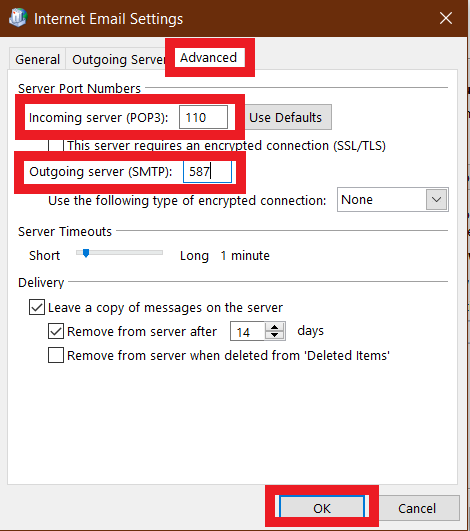
გათიშეთ "This server requires an encrypted connection (SSL/TLS)" POP3-ის შემთხვევაში გამოიყენეთ პორტი 110 IMAP-ის შემთხვევაში პორტი 143
Outgoing Port-ი ორივე პროტოკოლისთვის ერთია 587, ასევე აქაც Use the following type of encrypted connection მიუთითეთ None დააკლიკეთ Ok-ის
disable "This server requires an encrypted connection (SSL/TLS)" for POP3 use port 110, for IMAP use 143
Outgoing port is the same for both 587 and also set "Use the following type of encrypted connection" to none
დააკლიკეთ Next-ს და ელ-ფოსტა დაემატება აუთლუქში.
Click on Next and E-mail will be added in Outlook